![Alexa Logo - _WOTRNS - ATAI-1.png]](https://support.alexatranslations.com/hs-fs/hubfs/Alexa%20Logo%20-%20_WOTRNS%20-%20ATAI-1.png?height=50&name=Alexa%20Logo%20-%20_WOTRNS%20-%20ATAI-1.png)
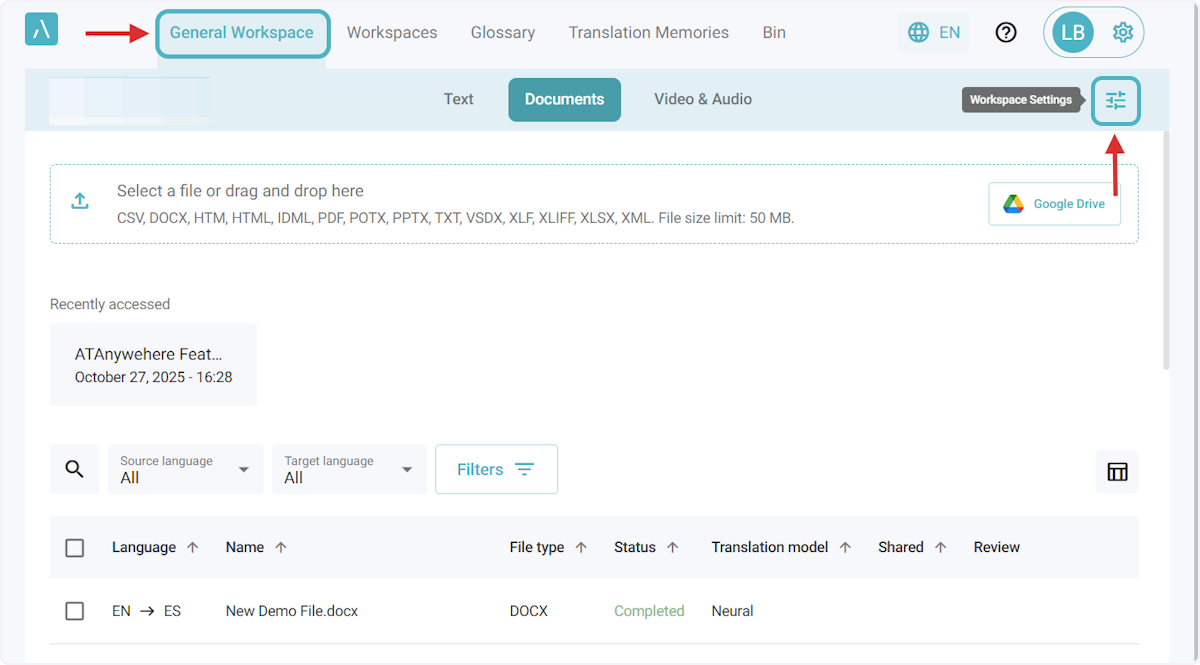
1. Click General Workspace in the navigation bar. Then, click on the Workspace Settings icon.
You can also follow the same steps of this article if you are in any workspace in the platform.
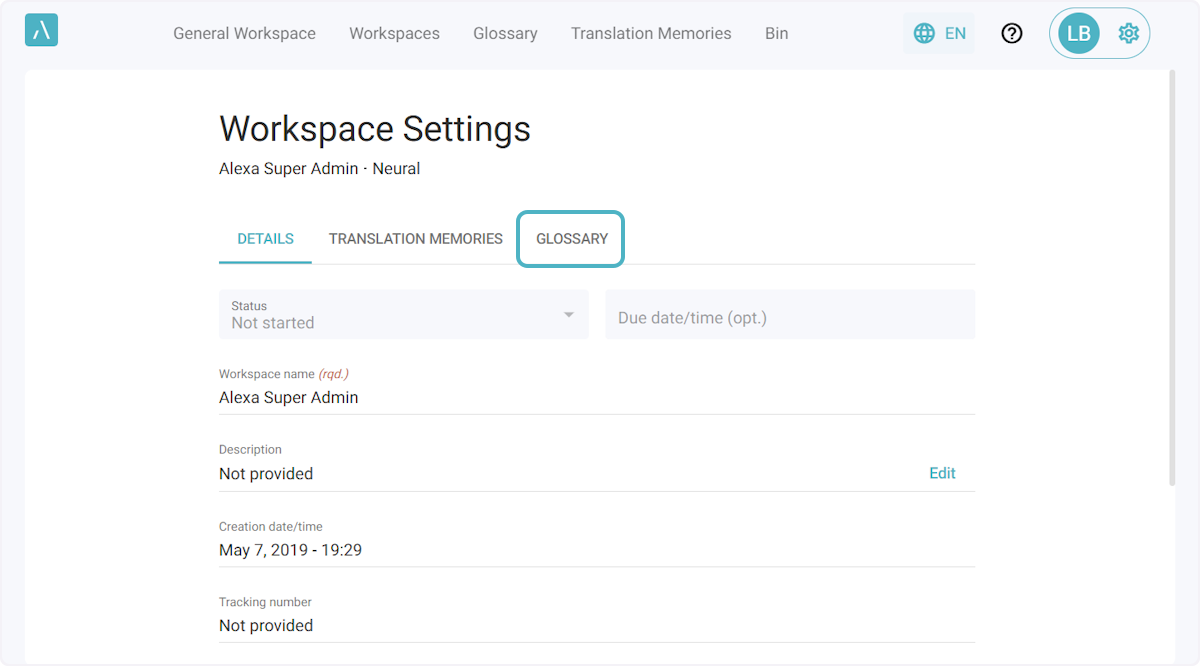
2. Click on the Glossaries tab.
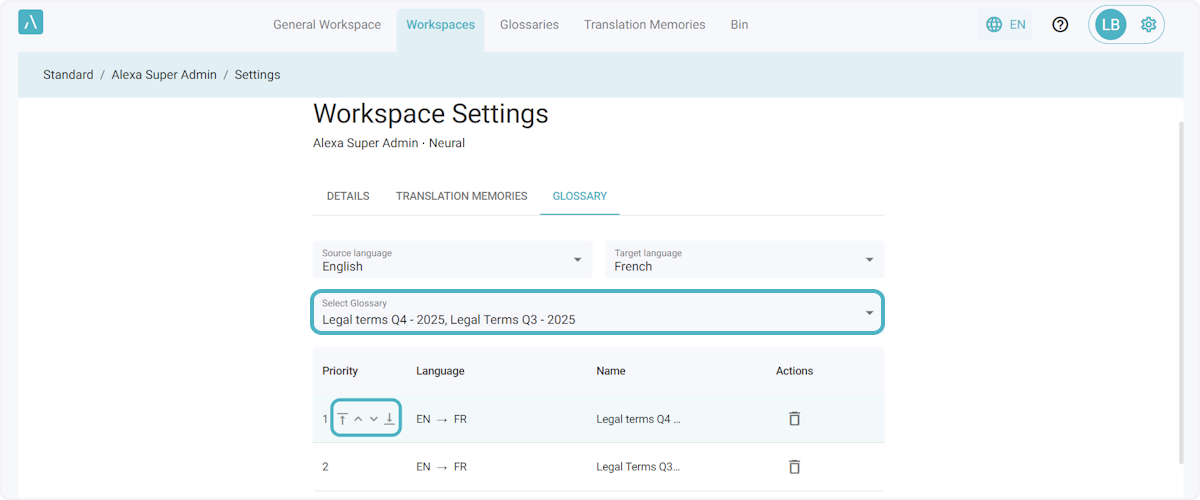
3. After selecting the required language direction, you can choose the glossaries you want to use from the drop-down menu.
Once the selected glossaries are added to the table below, they will already be enabled in that Workspace. You can adjust their priorities if needed using the arrows.
Priority:
If the same source term is found in two glossaries, the GL with the higher priority will take precedence. Typically, domain-specific glossaries are placed at a higher priority, followed by those with more general content used across the organization.
4. Start using your glossaries.
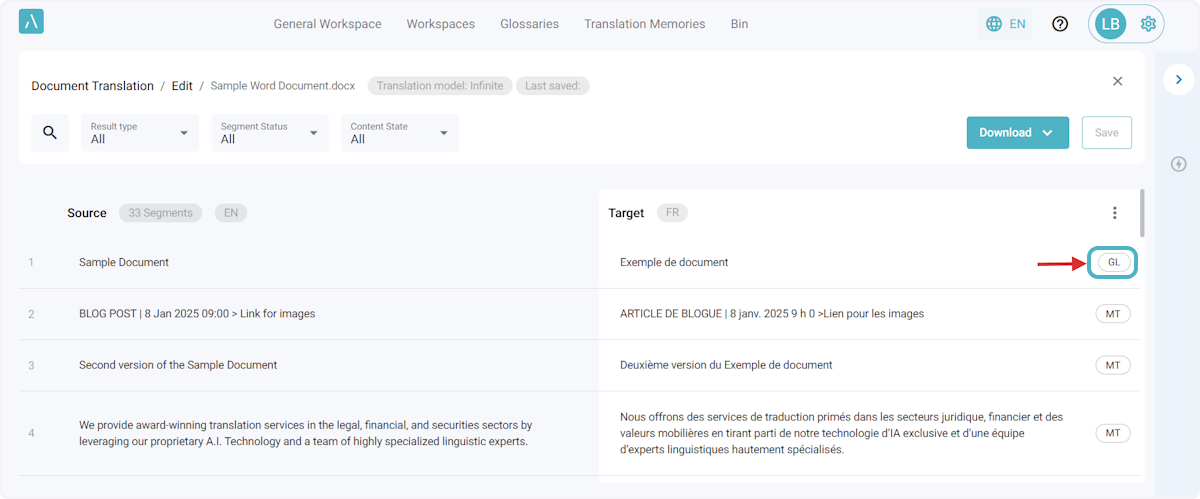
One way to confirm that a glossary has been applied in your translation is to translate a file within the workspace where that glossary is enabled. After the translation is completed, open the file in the Document Editor and look for a segment you know has a term that exists in the GL. The source type should appear as “GL”.