![Alexa Logo - _WOTRNS - ATAI-1.png]](https://support.alexatranslations.com/hs-fs/hubfs/Alexa%20Logo%20-%20_WOTRNS%20-%20ATAI-1.png?height=50&name=Alexa%20Logo%20-%20_WOTRNS%20-%20ATAI-1.png)
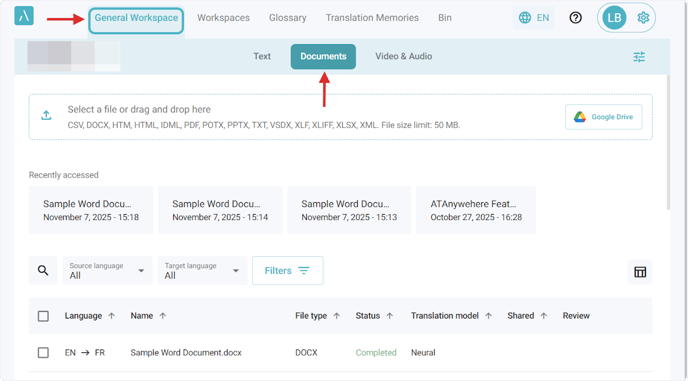
1. Click General Workspace in the navigation bar. Then, click on the Documents tab.
You can also follow the same steps in this article if you are in any workspace in the platform.
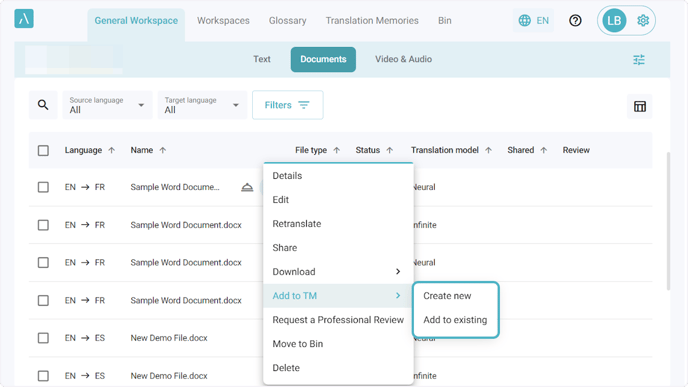
2. After translating and reviewing your document, click the three-dot menu and go to the Add to TM section. You will see two options: Create New and Add to Existing.
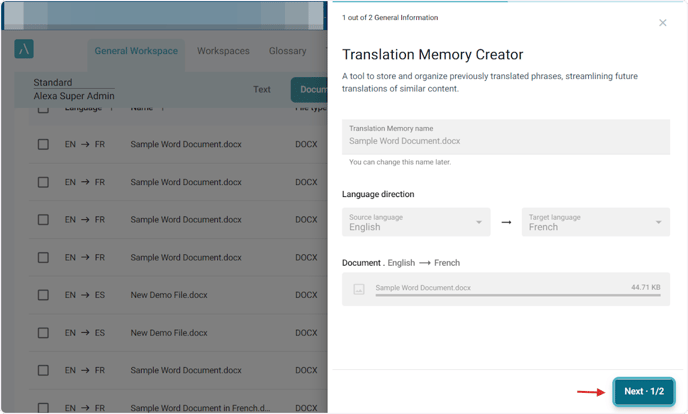
3. Create New flow:
Click on Create New. Step 1 will display the details of the new translation memory to be created.
4. Select the preferred processing level.
Click Create & Save to start the process.

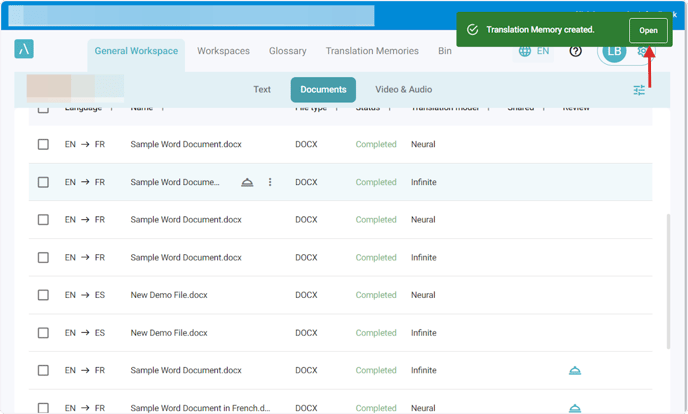
5. Click Open in the success message if you want to view the content of your new translation memory.
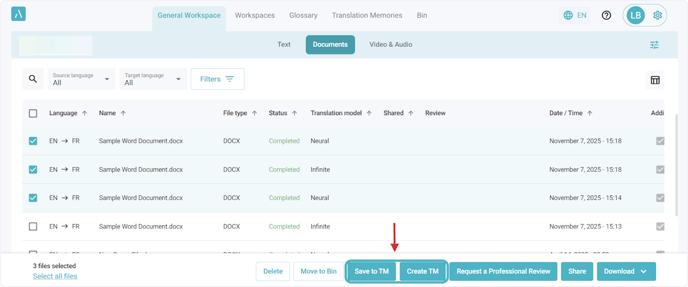
6. Add to Existing flow:
Click on Add to Existing. In step 1, select the existing TM you want to add the content of this new document to, then click Next to continue.

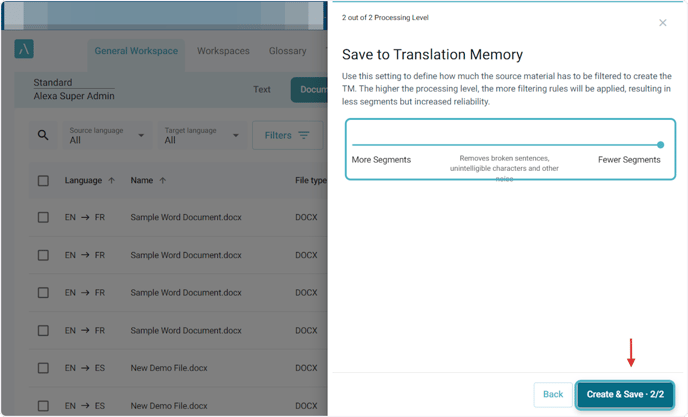
7. Select the preferred processing level.
Click Create & Save to start the process.
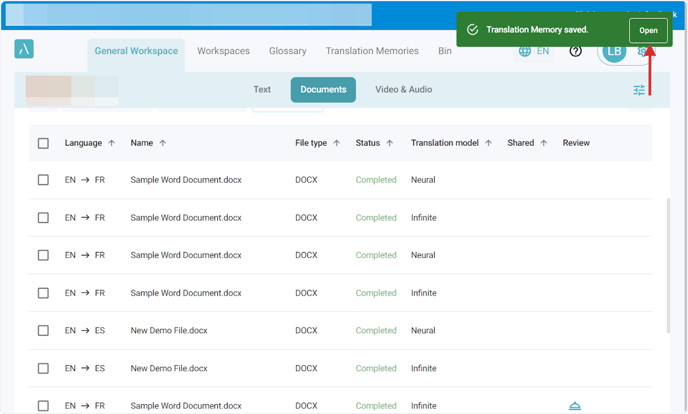
8. Click Open in the success message if you want to view the new content of your translation memory.
9. Both actions described in the previous steps can also be performed in bulk by selecting multiple documents at once and using the actions in the footer of the page.