![Alexa Logo - _WOTRNS - ATAI-1.png]](https://support.alexatranslations.com/hs-fs/hubfs/Alexa%20Logo%20-%20_WOTRNS%20-%20ATAI-1.png?height=50&name=Alexa%20Logo%20-%20_WOTRNS%20-%20ATAI-1.png)
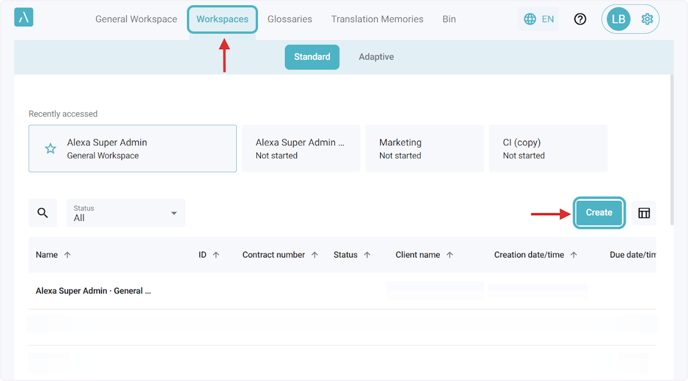
1. Click Workspaces in the navigation bar. Select Standard or Adaptive, then click Create
Standard Workspaces: Use resources like Glossaries and Translation Memories to improve translation quality and reduce editing time.
Adaptive Workspaces: Use Glossaries and Translation Memories plus get an Adaptive Engine that learns over time from the edits made by you and your team in our Editor or in any integrated editor. If your team plans to perform revisions in the Alexa Translation AI Platform or in any integrated platform, an Adaptive Workspace is recommended.
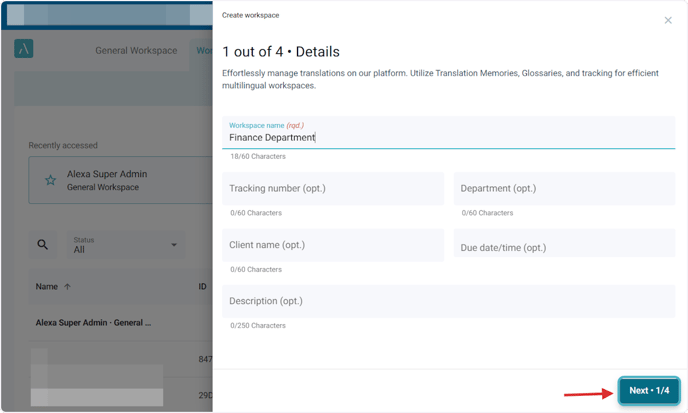
2. Name the workspace
Fill out additional details as needed.
3. Add Previous Translations
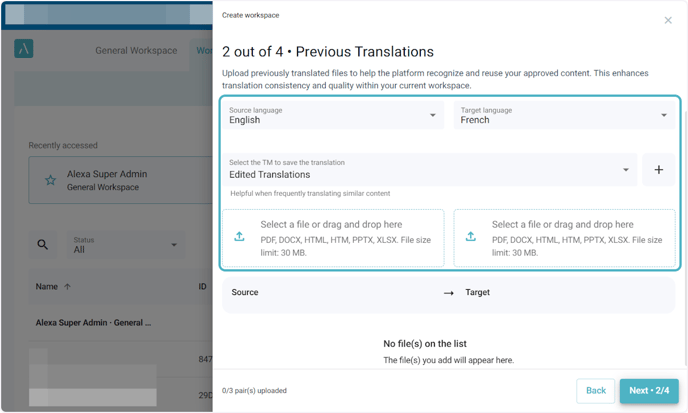
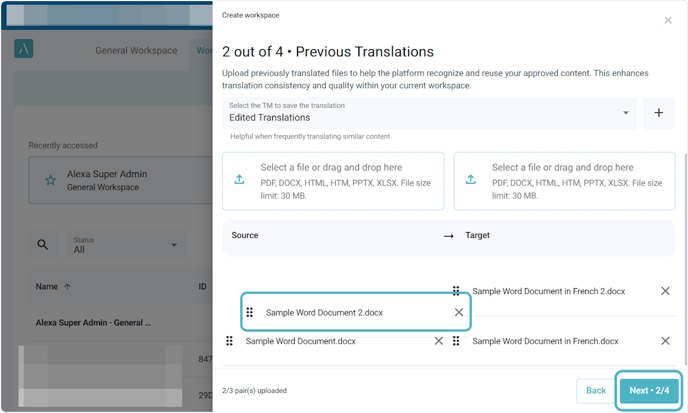
Upload previous documents available in two languages as reference files, so the workspace can start using your specific terminology immediately. The text from these documents will be automatically aligned, filtered, and saved in a Translation Memory. You can change the default language direction, select a different TM, or create a new one if needed.
When creating a workspace you can upload up to three files in the respective source and target areas.
4. Once uploaded, files can be dragged to organize the matching pairs together
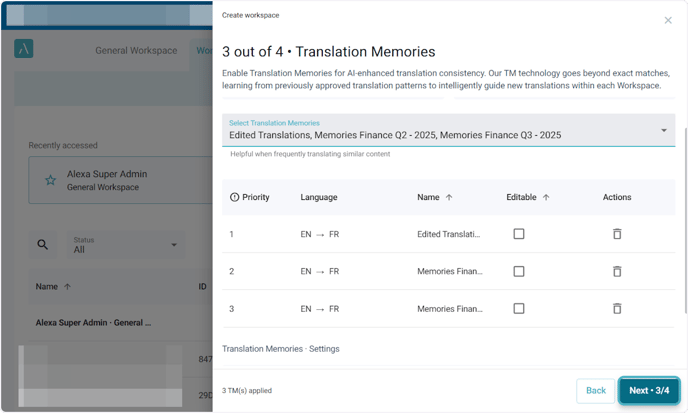
5. Select Translation Memories to enable in the workspace
You can adjust their priority using the arrows, mark them as editable, or remove them from the list. The TMs enabled in the General Workspace will also appear here, since they are global defaults automatically inherited when creating any new workspace.
Priority:
If the same source segment is found in two translation memories, the TM with the higher priority will take precedence. Typically, domain-specific TMs are placed at higher priority, followed by those with more general content used across the organization.
Editable:
If you mark a TM as editable, any segment that is accepted in the Editor during revision will be added as a new entry in that TM. If the segment already exists in the TM and the user edits the translation in the editor, the TM entry will be updated as well. This setting is helpful when you want to keep your translation resources up to date while completing your daily translation tasks.
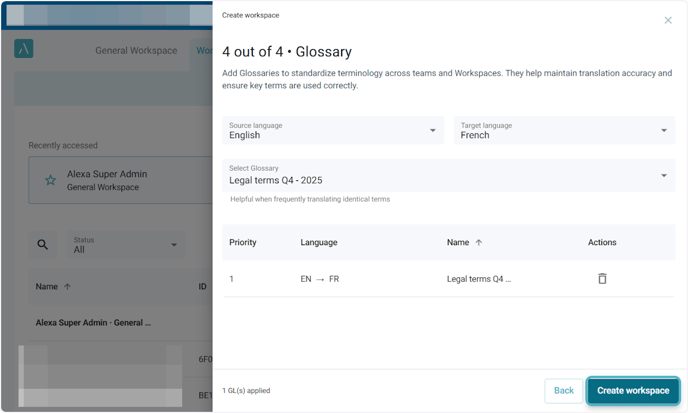
6. Enable Glossaries
Glossaries enabled in the General Workspace are automatically inherited and appear by default in this list.
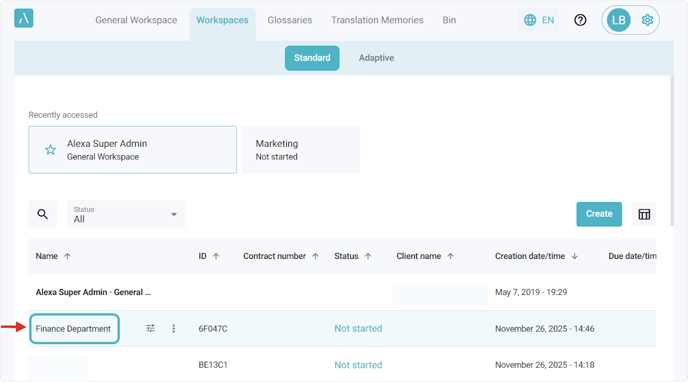
7. The newly created workspace will appear at the top of the list.
Click its name to open it and start translating immediately.
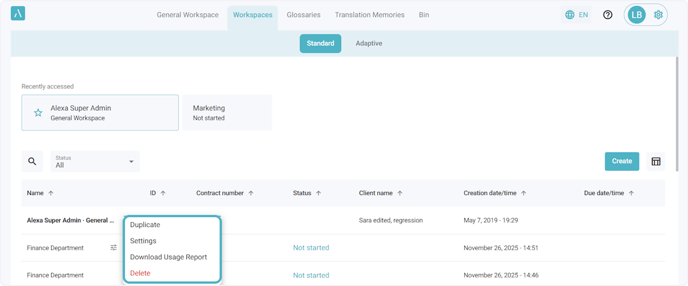
8. Click the the three dots to duplicate the workspace, open settings, download the usage report, or delete the workspace