![Alexa Logo - _WOTRNS - ATAI-1.png]](https://support.alexatranslations.com/hs-fs/hubfs/Alexa%20Logo%20-%20_WOTRNS%20-%20ATAI-1.png?height=50&name=Alexa%20Logo%20-%20_WOTRNS%20-%20ATAI-1.png)
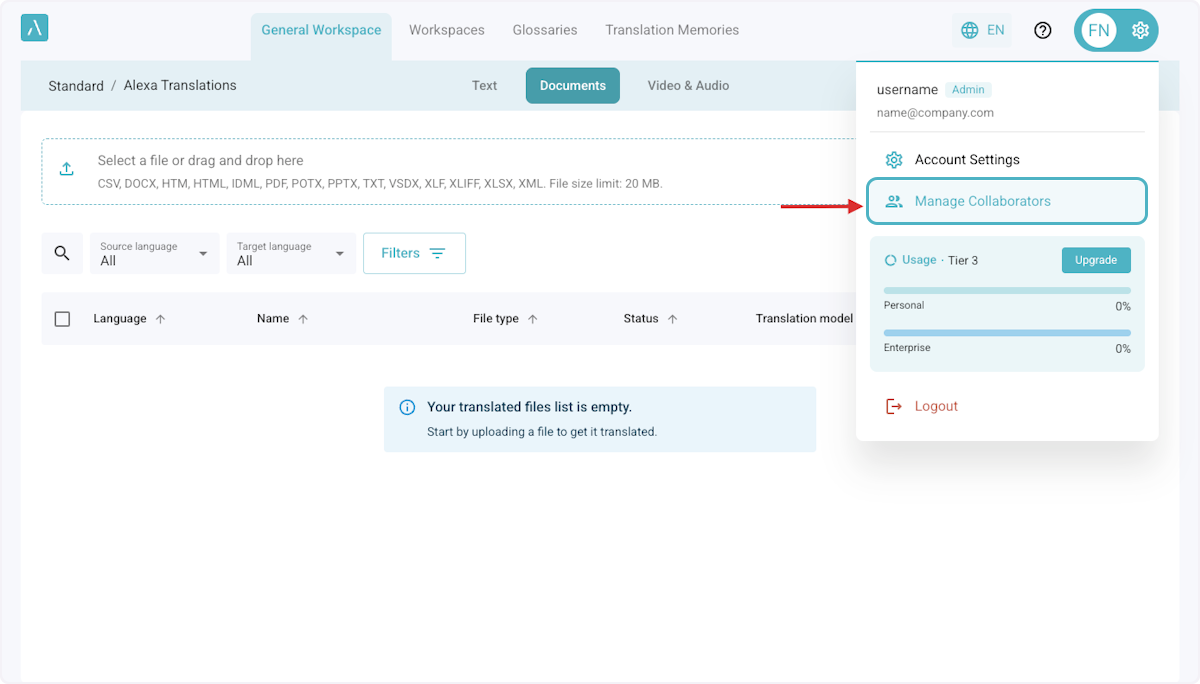
1. Click on Settings > Manage Collaborators
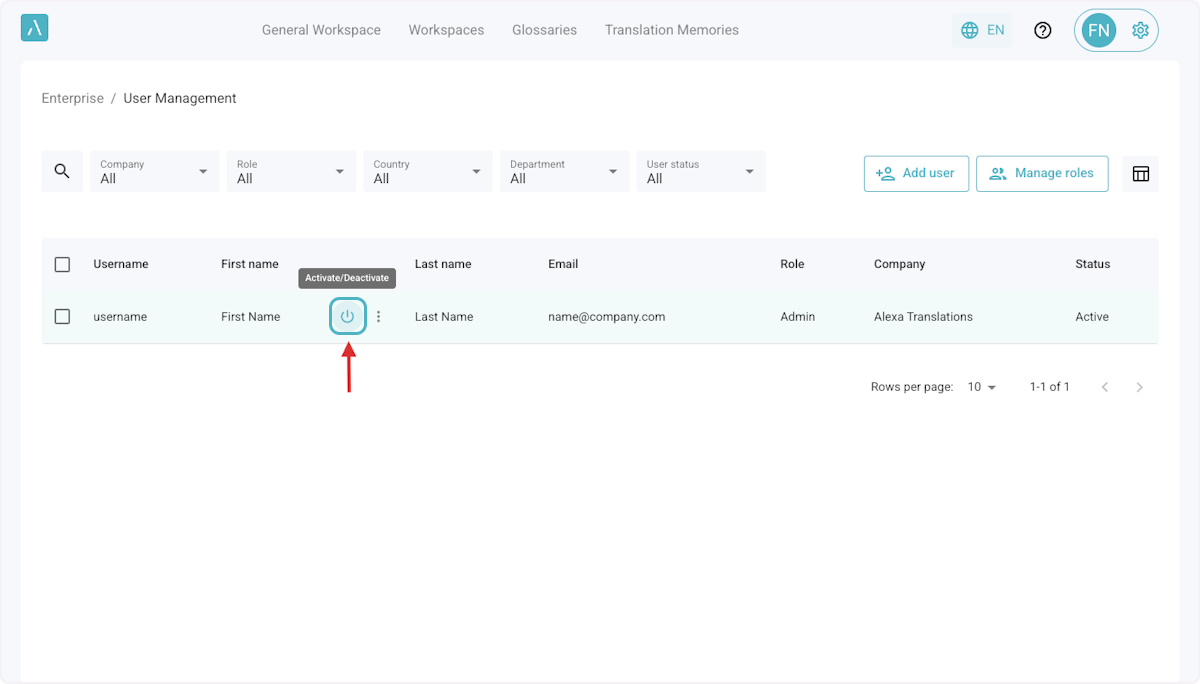
3. Click on the Power symbol to instantly activate or deactivate a user
This will immediately log out users if they are on the platform.
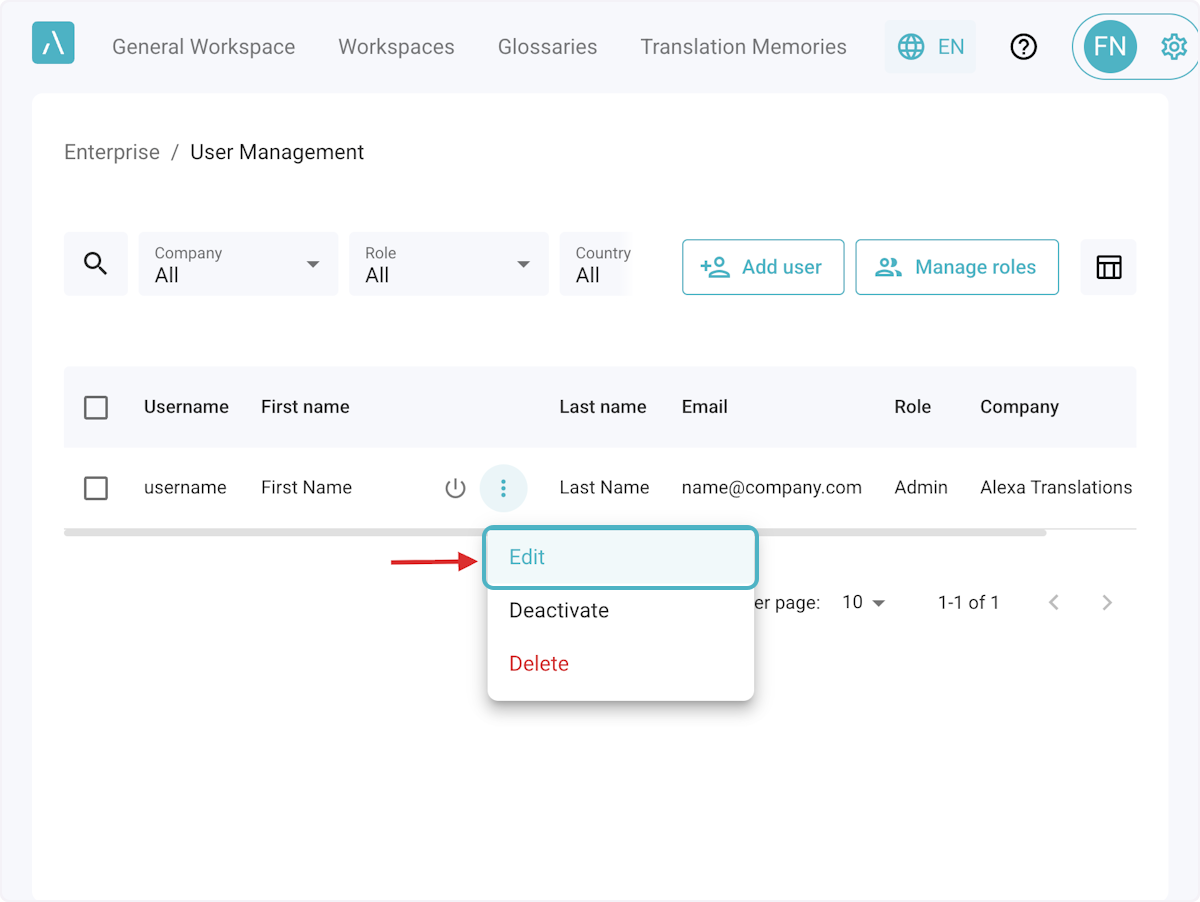
4. Hover over the three dots for additional options to Edit, Deactivate or Delete a user.
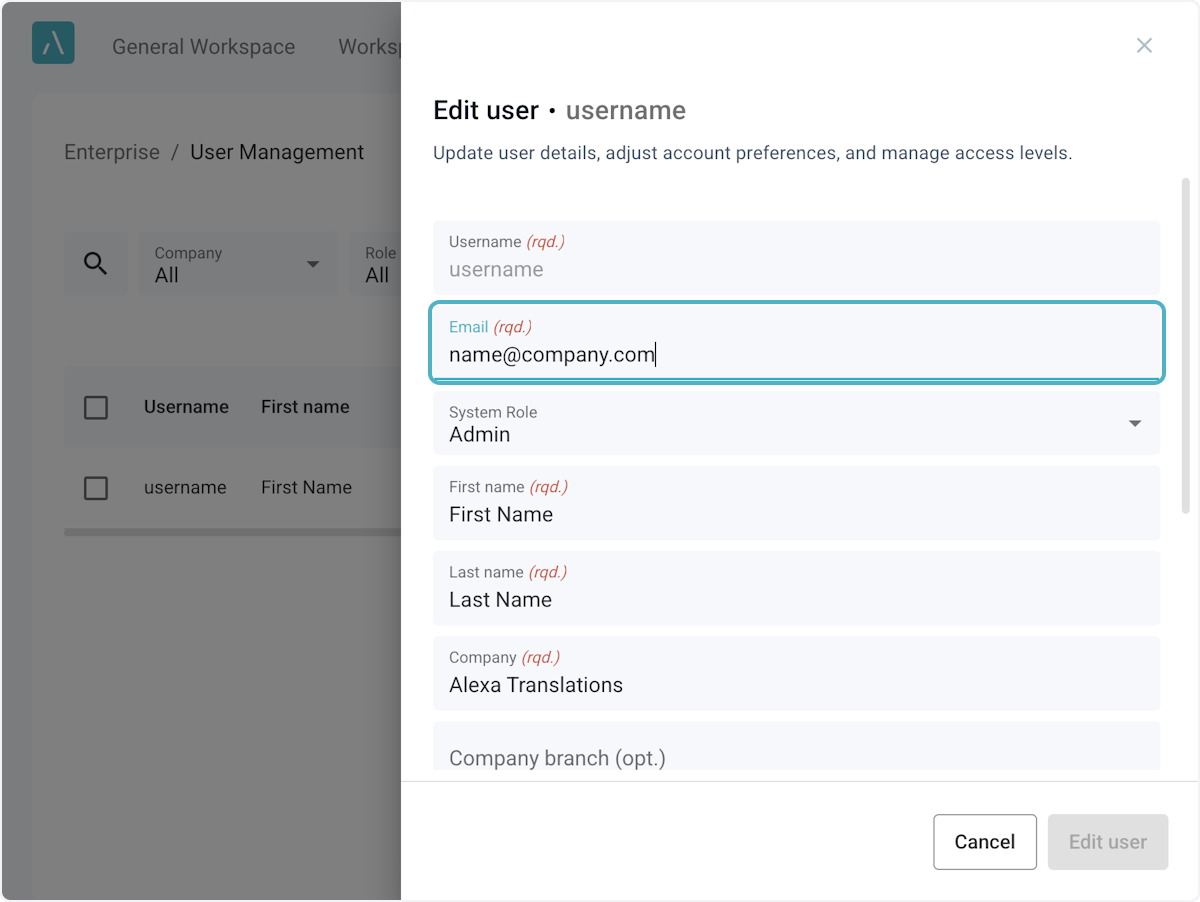
5. Edit user
Editing users lets you change user details, adjust account preferences and manage access levels.
6. Personalize User list by clicking the Table icon

7. Customize Columns
Mandatory columns are pre-selected and cannot be changed.
After selecting your preferred columns, click Apply changes. The updates will apply immediately and your column preferences will be saved for future logins.
