![Alexa Logo - _WOTRNS - ATAI-1.png]](https://support.alexatranslations.com/hs-fs/hubfs/Alexa%20Logo%20-%20_WOTRNS%20-%20ATAI-1.png?height=50&name=Alexa%20Logo%20-%20_WOTRNS%20-%20ATAI-1.png)
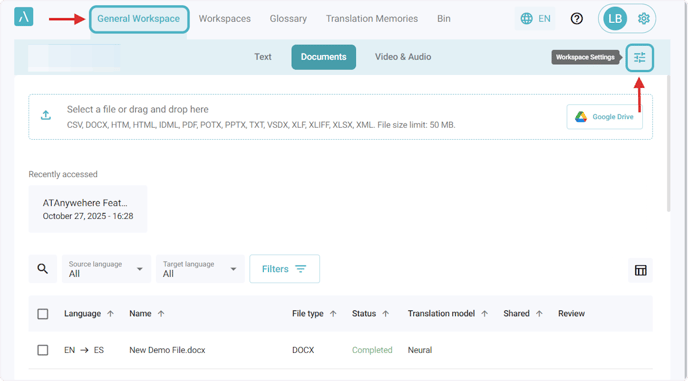
1. Click General Workspace in the navigation bar. Then, click on the Workspace Settings icon.
You can also follow the same steps in this article if you are in any workspace in the platform.
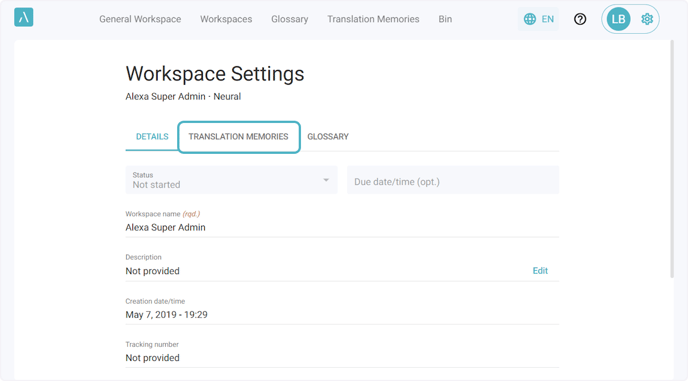
2. Click on the Translation Memories tab.
3. Scroll down in this tab.
Scrolling down in this tab, you will find a section to upload previous translations so a translation memory can be created automatically, a section to select languages and add existing TMs, and a section to set the initial translation matching percentage limit and the translation option percentage limit.
- Initial translation matching percentage limit:
This is the minimum match percentage a segment from a translation memory needs in order to be applied automatically during the machine translation process. The default value is 100%. - Translation option percentage limit:
This is the minimum match percentage a segment from a translation memory needs to appear in the Document Editor under Translation Options, giving users alternative suggestions for a particular segment. The default value is 70%.

4. After selecting the required language direction, you can choose the translation memories you want to use from the drop-down menu.
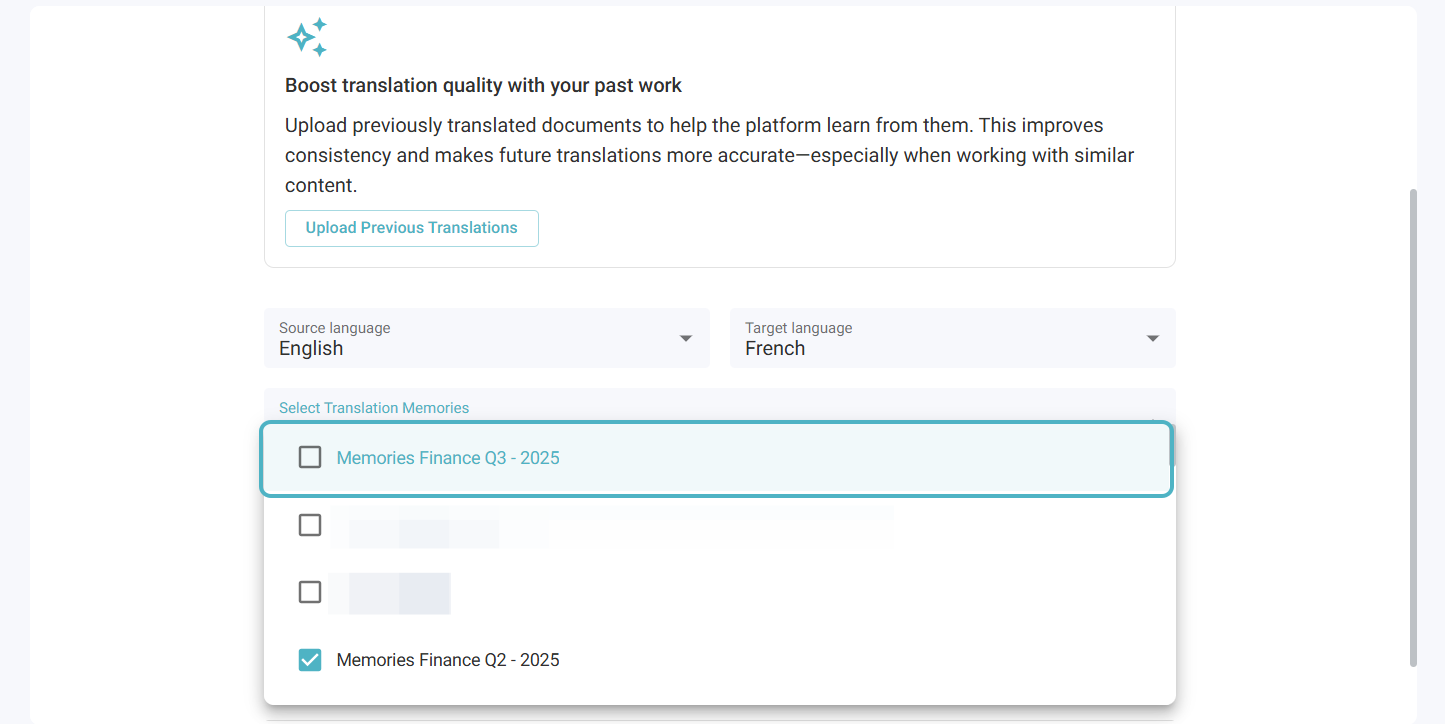
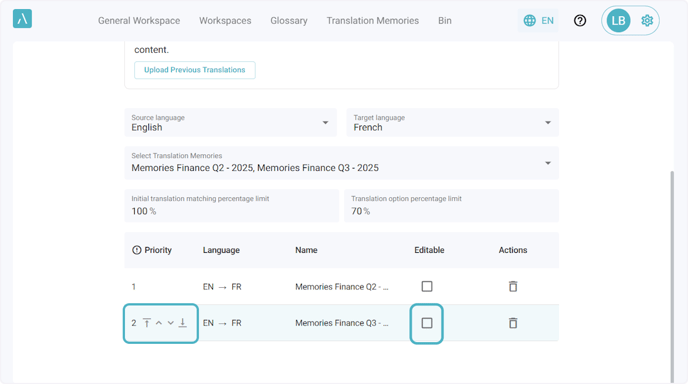
5. Once the selected translation memories are added to the table below, they will already be enabled in that Workspace. You can adjust their priorities and mark them as editable if needed.
Priority:
If the same source segment is found in two translation memories, the TM with the higher priority will take precedence. Typically, domain-specific TMs are placed at higher priority, followed by those with more general content used across the organization.
Editable:
If you mark a TM as editable, any segment that is accepted in the Document Editor during revision will be added as a new entry in that TM. If the segment already exists in the TM and the user edits the translation in the editor, the TM entry will be updated as well. This setting is helpful when you want to keep your translation resources up to date while completing your daily translation tasks. Keep in mind that anyone with permission to edit translation jobs in the workspace will also be able to modify the TMs.
6. Start using your translation memories.
One way to confirm that a translation memory has been applied in your translation is to translate a file within the workspace where that translation memory is enabled. After the translation is completed, open the file in the Document Editor and look for a segment you know exists in the TM. The source type should appear as “TM”. The matching percentage shown below it indicates how similar the segment in your file is to the one stored in the translation memory.
