![Alexa Logo - _WOTRNS - ATAI-1.png]](https://support.alexatranslations.com/hs-fs/hubfs/Alexa%20Logo%20-%20_WOTRNS%20-%20ATAI-1.png?height=50&name=Alexa%20Logo%20-%20_WOTRNS%20-%20ATAI-1.png)
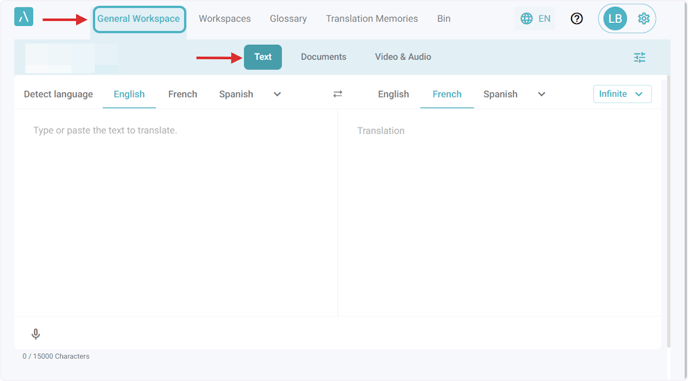
1. Click General Workspace in the navigation bar. Then, click on the Text tab.
You can also follow the same steps in this article if you are in any workspace in the platform.
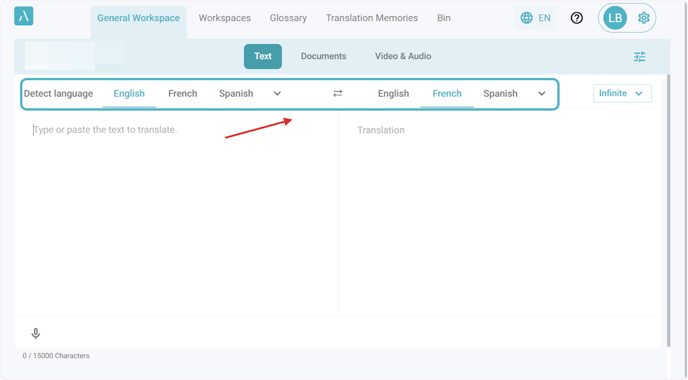
2. Use the bar at the top to select the Source and Target languages.
If you’re unsure of the source language, you can use the Detect Language feature.
For a faster selection, you can also use the Switch Language function with the two arrows in the center.
3. Copy and paste, type, or use the speech-to-text function to add text to the source textbox.
Review your translation, make any required edits, and then select the Save action at the bottom.
You can translate up to 15,000 characters at a time.

4. You will see two areas in this section, one at the top for saving content as a Translation Memory and one at the bottom for saving it as a Glossary.
Each area includes a drop-down menu that allows you to select an existing Translation Memory or Glossary.
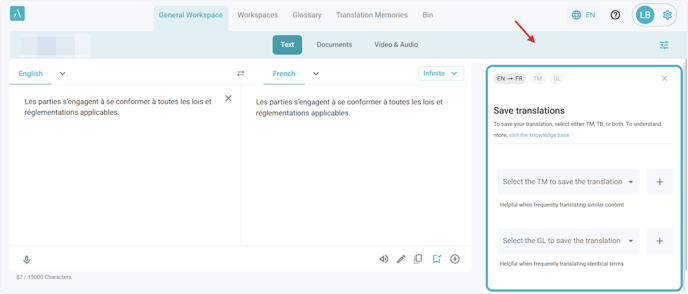
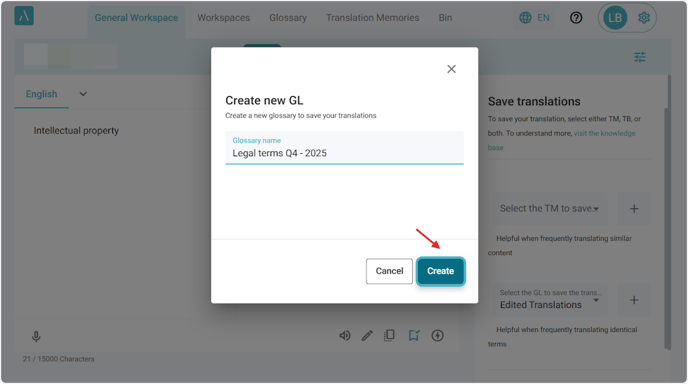
5. Click the + icon, and a section will appear where you can enter the name of the new resource.
Click Create, and it will be automatically selected in the corresponding drop-down. This works the same way for creating both new TM and GL.
6. Translation memory example:
Select up to two existing translation memories from the drop-down.
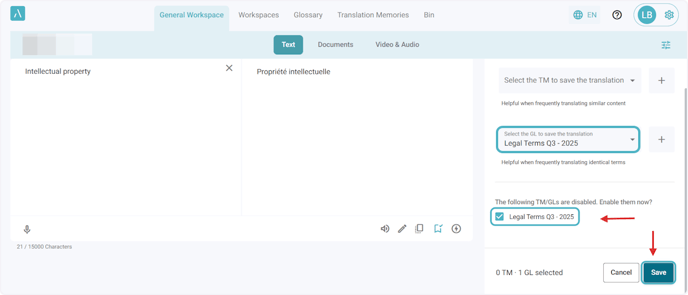
If they are not enabled, check the box next to the TM name, then click Save.

7. Glossary example:
Select up to two existing glossaries from the drop-down.
If they are not enabled, check the box next to the GL name, then click Save.