![Alexa Logo - _WOTRNS - ATAI-1.png]](https://support.alexatranslations.com/hs-fs/hubfs/Alexa%20Logo%20-%20_WOTRNS%20-%20ATAI-1.png?height=50&name=Alexa%20Logo%20-%20_WOTRNS%20-%20ATAI-1.png)
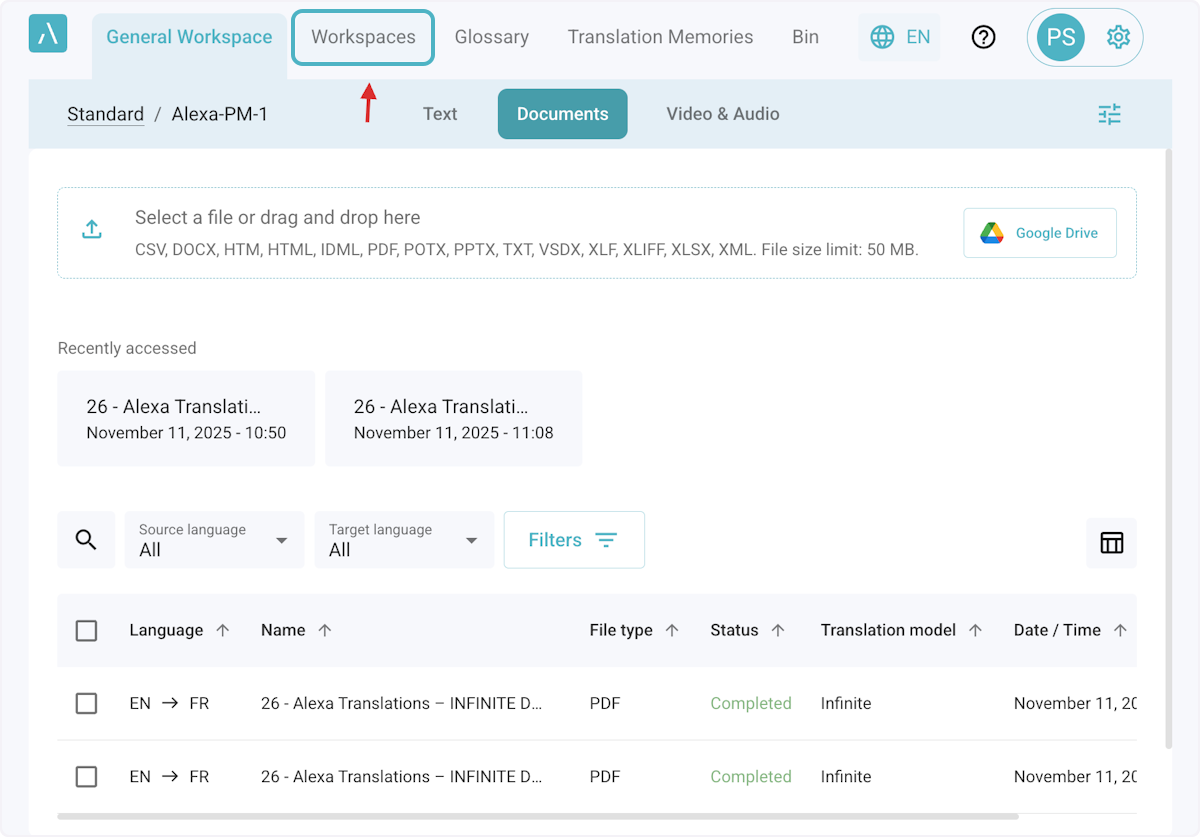
1. Click on Workspaces
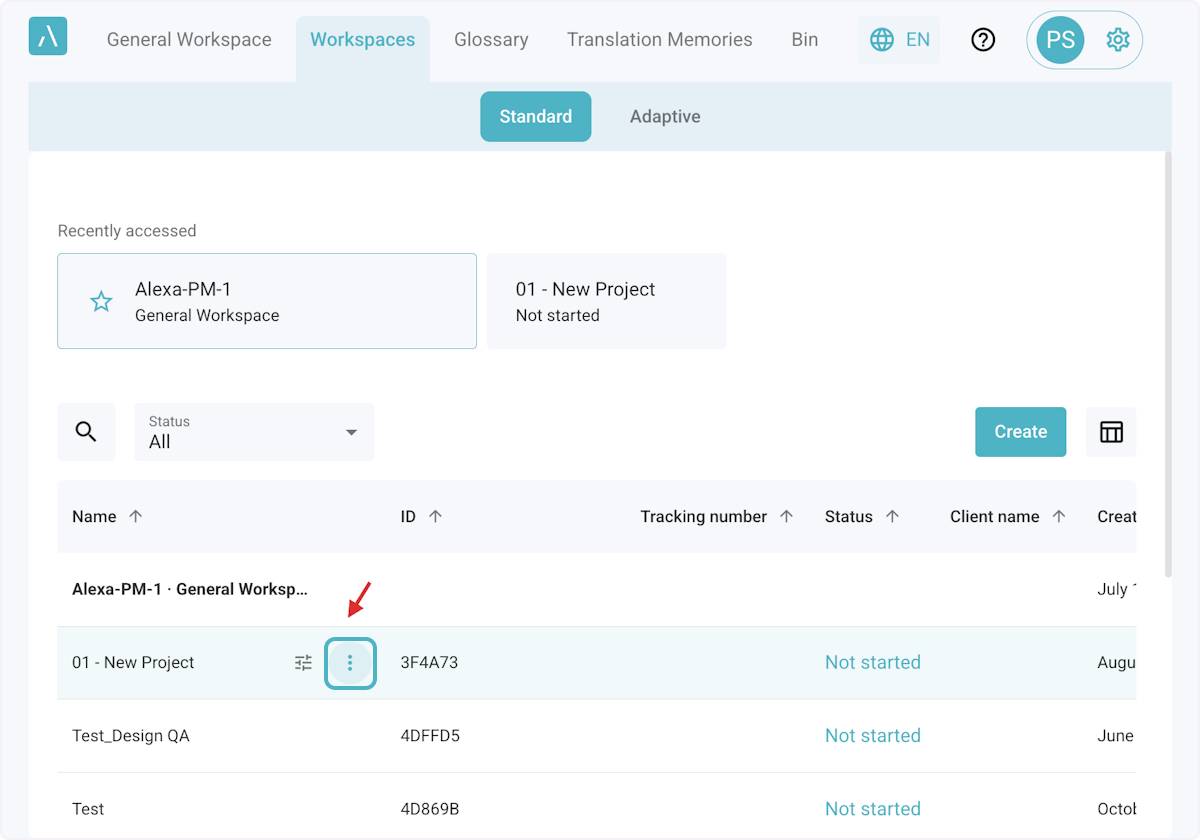
2. Hover over the row for a workspace and select the 3 dots as shown.
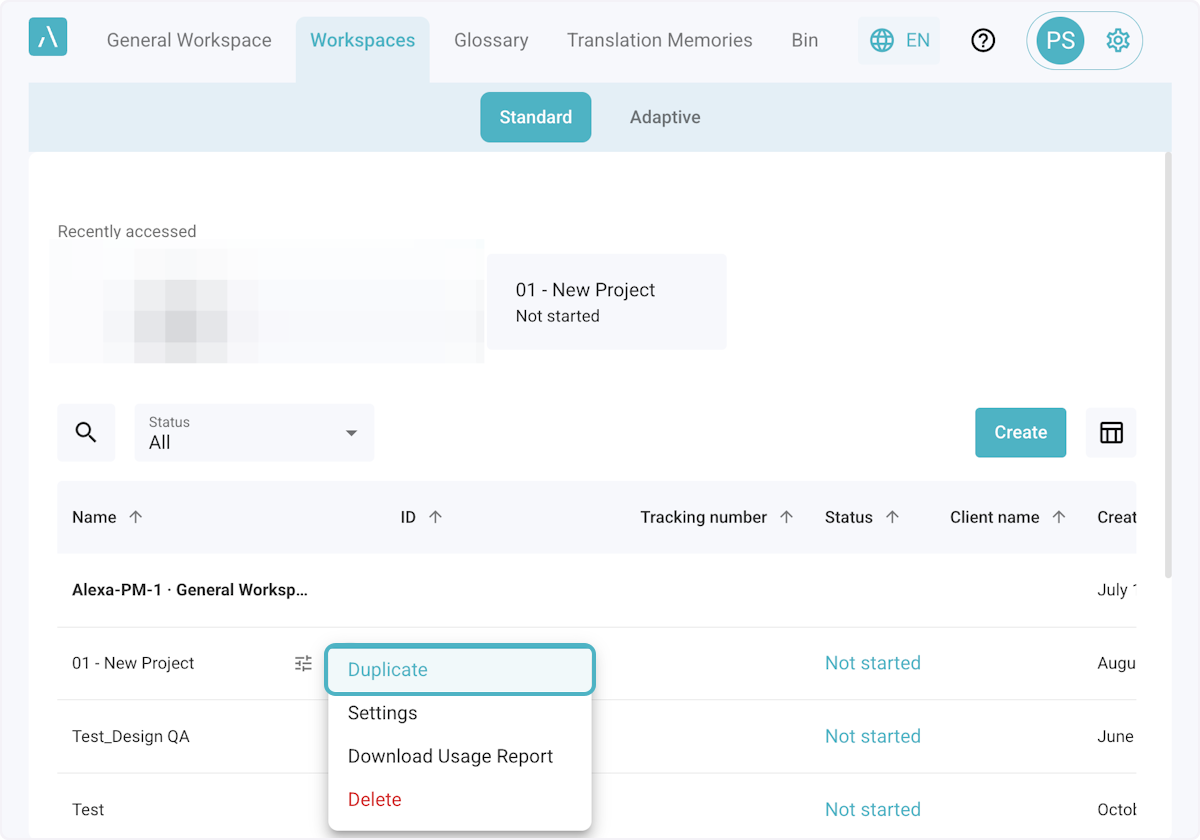
3. When the menu opens after clicking the three dots, select Duplicate.
This creates a copy of the Workspace - carrying over all the applied settings/configurations, but not any translations that were completed within the Workspace.
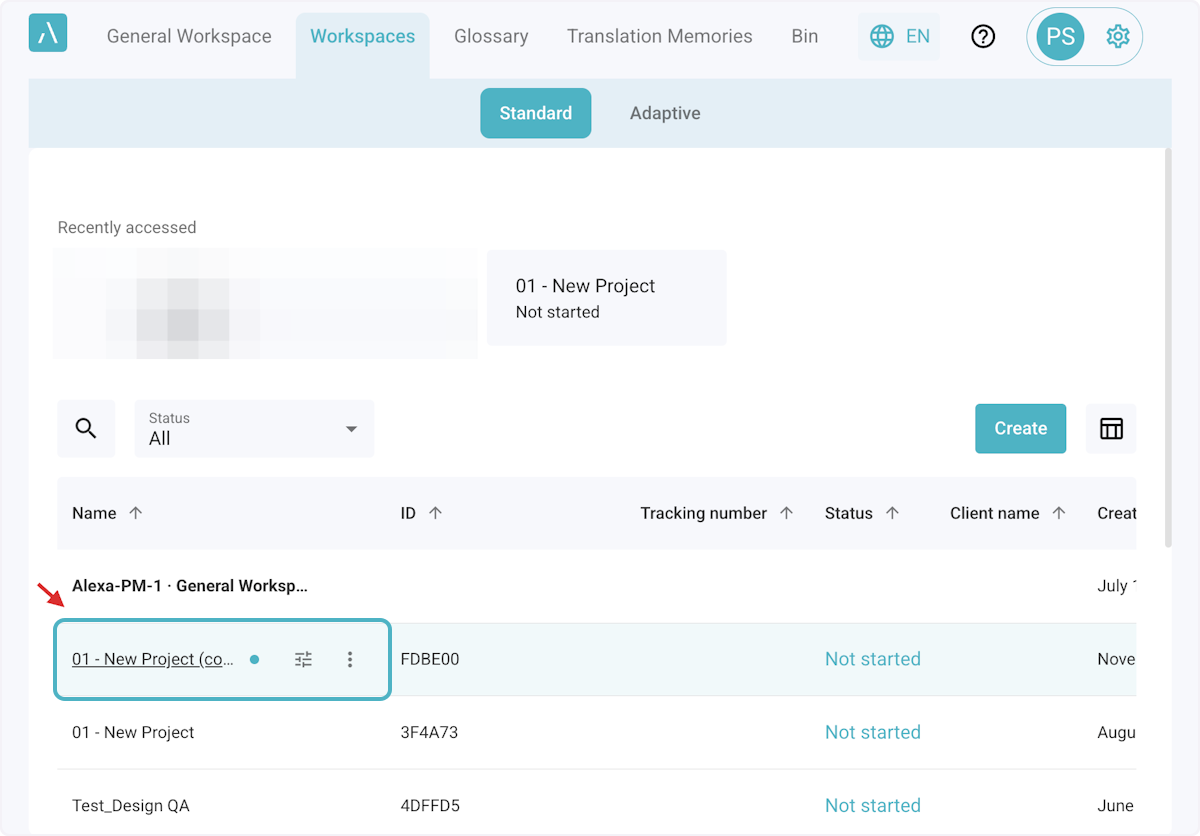
4. The duplicated workspace will show at the top of the list as "[Original Workspace Name] (copy)".
Click on it to open the new Workspace.
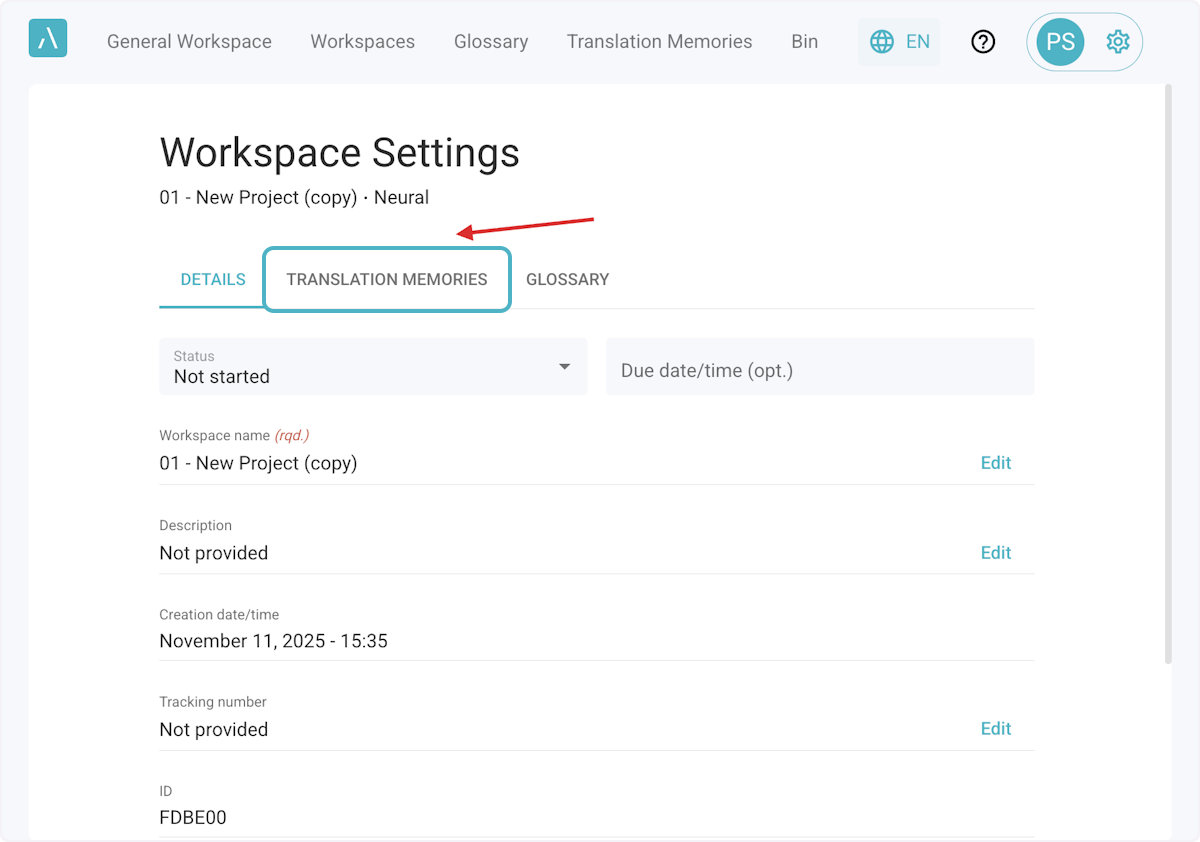
5. Select "Workspace Settings" on the right, to see the Translation Memories and Glossaries applied to the Workspace.

6. In the Workspace Settings you rename the Workspace on the Details page. You can also view and adjust the Translation Memories and Glossaries for your new Workspace as needed.