![Alexa Logo - _WOTRNS - ATAI-1.png]](https://support.alexatranslations.com/hs-fs/hubfs/Alexa%20Logo%20-%20_WOTRNS%20-%20ATAI-1.png?height=50&name=Alexa%20Logo%20-%20_WOTRNS%20-%20ATAI-1.png)
1. Click on Settings and navigate to Account Settings
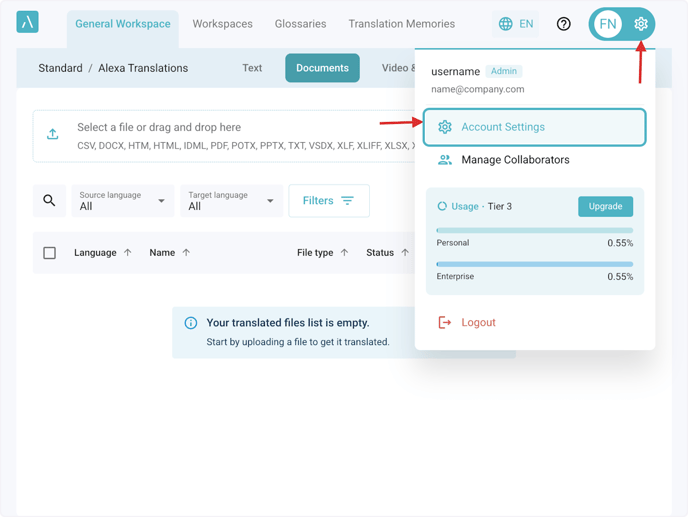
2. Click on Translation to update translation settings
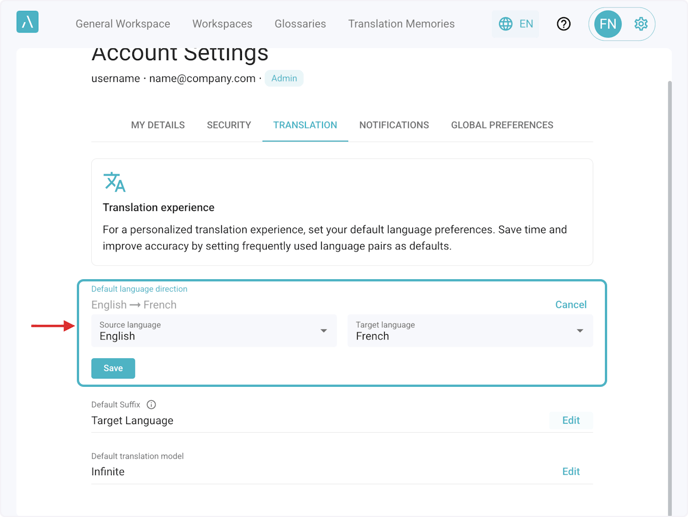
Click on Edit next to any field to update the corresponding details.

3. Set the default language direction by selecting any language in the Source and Target language dropdown list
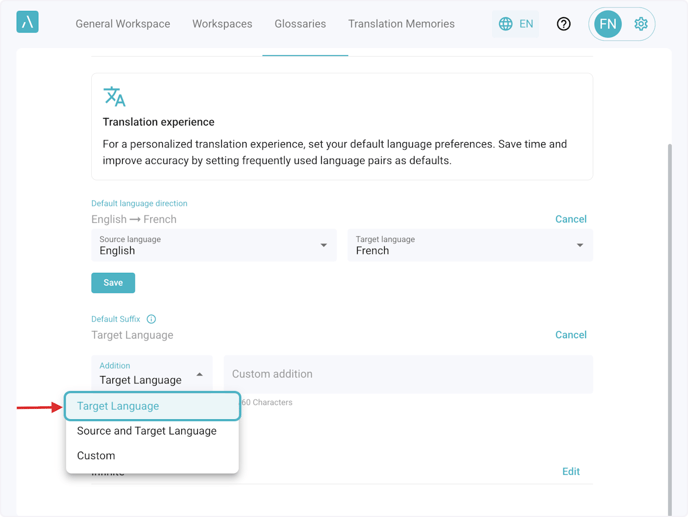
5. Set naming structures with Default Suffixes
Under Default Suffix, you can set the addition to the source document's name for creating the target document's name. Select an addition from the dropdown list or add a custom piece of text in the Custom addition field.
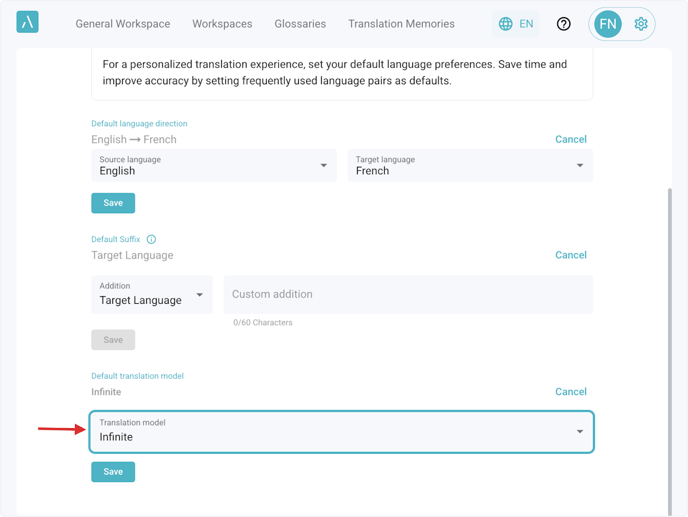
6. Select Translation Model
Under Default translation model, you can choose to use Infinite Translation or Neural Translation as the default model for all translation workflows across the platform.
This setting is only available if Infinite Translation is enabled for.
7. Go to Notifications to choose your preferred language for Email Notifications
Click Edit to select the language.
