![Alexa Logo - _WOTRNS - ATAI-1.png]](https://support.alexatranslations.com/hs-fs/hubfs/Alexa%20Logo%20-%20_WOTRNS%20-%20ATAI-1.png?height=50&name=Alexa%20Logo%20-%20_WOTRNS%20-%20ATAI-1.png)
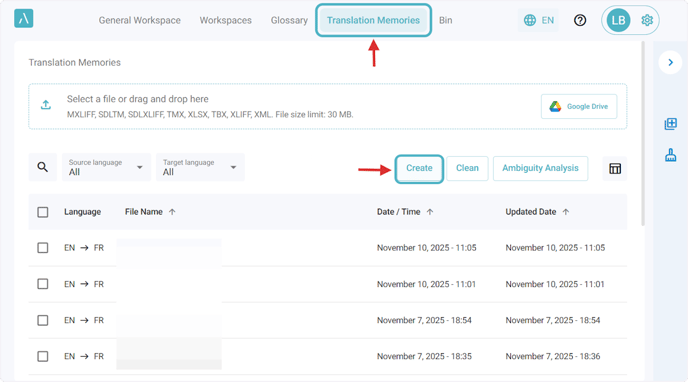
1. Click on Translation Memories in the navigation bar. Then, click on the Create button.
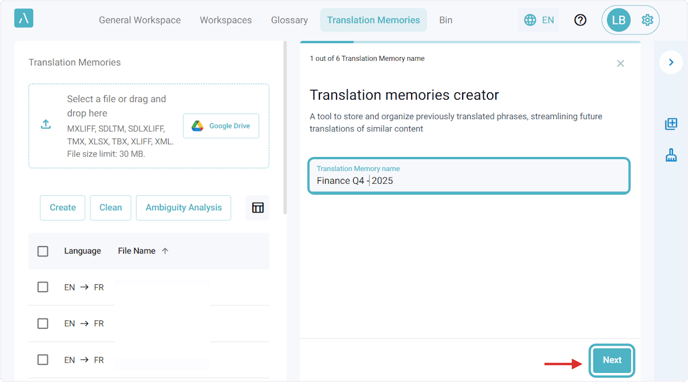
2. Type the translation memory name, then click Next to continue.
3. Select the language direction you need, then click Next to continue.

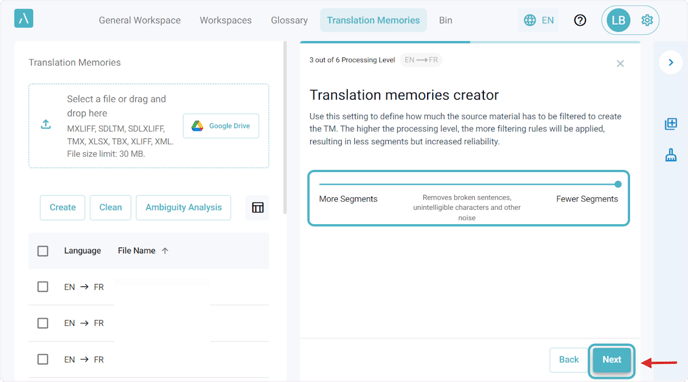
4. Select your preferred processing level, then click Next to continue.
5. In this step, use the drop zones to drag and drop your source and target files, click the area to select them from your computer, or use the Google Drive button to choose files from your drive. When you’re ready, click Next to continue.
This step is very important because the TM creation will fail if the documents are not aligned properly.
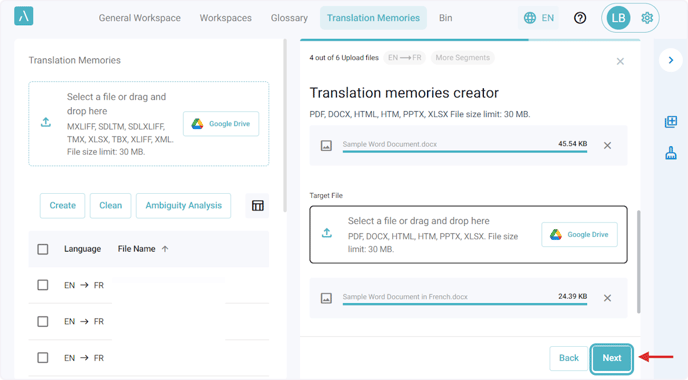
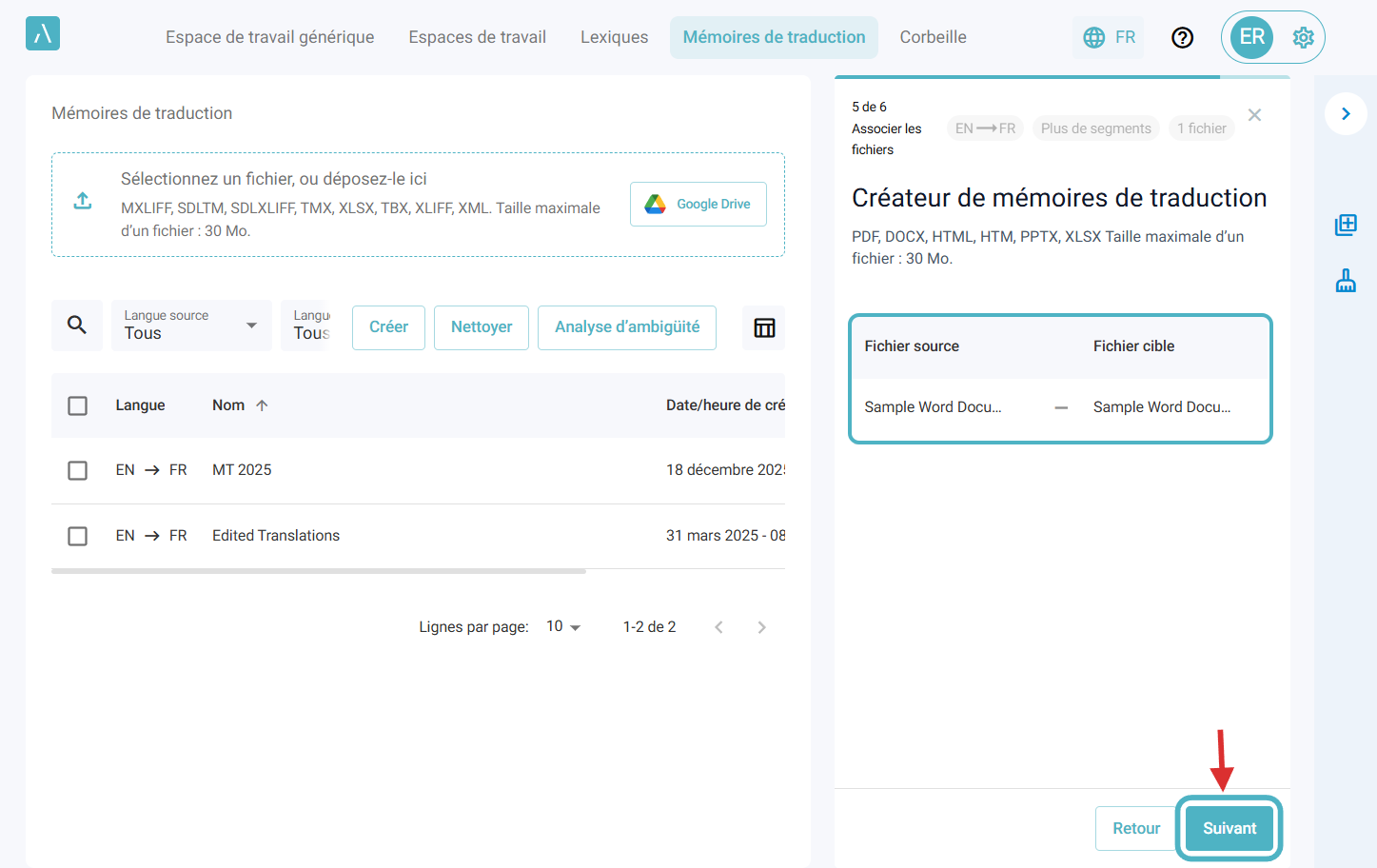
6. In this step, you’ll see the source files you uploaded in the first column and the target files in the second.
7. In this final step, select the output file type you want, and check the additional option if the original files contain comments that should be aligned and included in the translation memory, then click Create to start the process.

8. Once the translation memory appears as Completed, you can select it and perform the actions you need. You can download it, save it to your account so it appears as a new entry in the translation memory table, or delete it if necessary.
